Cookie Audit Plugin for Chrome & Firefox: Your First Audit
Install ConsentScope in Chrome or Firefox, not in your website. This cookie audit plugin is a browser extension for checking cookies and browser storage while you test a page's consent choices. The basic current-page checks are free. You do not need WordPress admin access or a Pro license to begin.
ConsentScope is an auditing extension for Chrome and Firefox. It monitors cookies, localStorage, sessionStorage and third-party activity and relates observations to detected consent events. It does not install a CMP or repair tag settings for you.
Inspect your consent setup in Chrome
Install the free extension for current-page checks. Start with a fresh session and compare the page before and after a banner choice.
Install the free Chrome extensionUsing Firefox? Install the Firefox extension. If you cannot install extensions on your work computer, start with the free online cookie audit and review its passive-scan limits.
Run your first audit in Chrome or Firefox
- Install and allow site access. Use the official Chrome Web Store or Firefox Add-ons link above. This guide covers desktop Chrome and Firefox; it does not assume support in Safari or mobile browsers.
- Start clean. In a dedicated test profile, remove the target site's saved data, enable ConsentScope and reload the page. Clearing site data may sign you out. Keep Auto-Reject off when you want to observe an untouched banner.
- Inspect before clicking. Open ConsentScope from the browser toolbar. Confirm the displayed domain and inspect the entries recorded before a detected consent event. Unknown classifications and missing consent signals need manual review.
- Compare a separate run. Start fresh, choose Reject all and inspect activity again. Repeat separately for acceptance. A hidden banner is not proof that tracking stopped, and a zero count is not proof that every integration was tested.
What the ConsentScope popup looks like
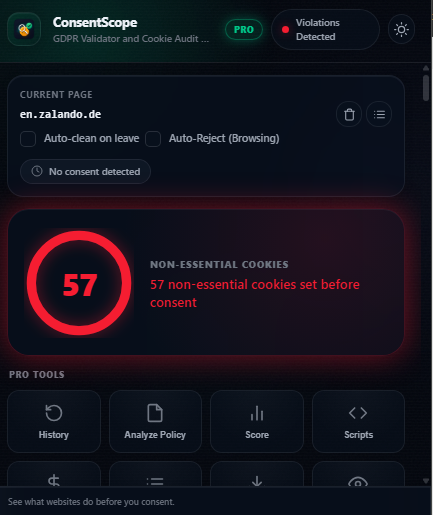
- Current page: confirm you are inspecting the intended tab and not a redirect or challenge page.
- Consent status: No consent detected means the extension has not recognized a consent event; it does not establish that no prior preference exists.
- Flagged count: investigate the underlying cookie, its purpose and timing. Automated classification is evidence to review, not a legal verdict.
- Pro controls: saved history, policy analysis and PDF reporting are separate from the free current-page check. You can begin without buying them.
Browser extension, WordPress plugin or CMP tool?
These tools can work together. A WordPress plugin may connect your site to a CMP, while a browser extension observes the resulting published page. Some CMP products also offer their own scanners or diagnostics; check their documented scope rather than assuming that every product in a category behaves alike.
| Tool type | Where it runs | Use it when | Check before relying on it |
|---|---|---|---|
| Browser audit extension | Your Chrome or Firefox session | You need to investigate a page while making consent choices. | Site permissions, supported events, browser protections and reporting limits. |
| WordPress consent plugin | Your WordPress installation, sometimes connected to a cloud service | You need to configure a banner or service blocking within WordPress. | Whether inventory scanning is included and how it tests dynamic content. |
| CMP-specific diagnostics | The CMP dashboard or its browser tools | You need to inspect vendor settings, category mappings or consent signals. | Whether the tool observes actual requests as well as the configured choices. |
| Remote browser scanner | A hosted browser outside your own session | You need repeatable checks on public URLs. | Scan region, interaction behavior, authentication support and observation window. |
For a broader comparison of free methods, read Free Cookie Audit Software. This guide focuses on selecting and using the browser plugin, not ranking unrelated products by an unverified feature checklist.
Set up the extension before you test
- Install from the official browser store and review the requested permissions. Enable access for the website you intend to inspect.
- Create a dedicated test profile. Confirm the extension is enabled there; private browsing does not automatically enable every extension.
- Remove the target site's prior data in that test profile. This may sign you out. Avoid doing it in a profile containing sessions you need to keep.
- Record the browser's tracking protection, third-party cookie settings and any other blockers. For a controlled comparison, use a test profile without unrelated blockers and note that setup.
- Reload after monitoring is ready. If the extension reports no data, check permissions and that the page actually loaded before interpreting the result.
Use a site you maintain or are authorized to test. For logged-in areas, prefer a test account. Cookie values and request payloads may contain identifiers; redact evidence before sharing it outside your team.
Test four consent states, not just the Accept button
| Test state | Action | What to record |
|---|---|---|
| Fresh visit | Load a clean session and leave the banner untouched. | Cookies and storage created, scripts loaded, requests sent and whether consent detection is available. |
| Reject optional categories | Start clean, reject, then visit a second representative page. | The selected preferences and any optional service that starts afterwards. |
| Partial acceptance | Start clean and allow one category if supported. | Which services begin and whether unrelated categories remain disabled. |
| Withdrawal | Accept, reopen settings and withdraw; inspect subsequent activity and reload. | Whether new collection stops as intended and how the saved preference is applied. |
Use the same observation window across runs and record when you click each control. Do not label everything after a rejection as after consent was granted: a button interaction and permission for optional tracking are different events. If a custom banner is not recognized, verify its actual choice manually and document that limitation.
For a structured record of the steps, use the cookie audit checklist. A single screenshot of an empty cookie list is not enough to explain which consent state was tested.
Example: investigating an analytics cookie before a choice
Consider an illustrative case: an analytics identifier appears during a fresh visit while the banner is still untouched. That observation is a reason to investigate; it is not a complete legal conclusion. First rule out an old identifier left from a previous run, then identify the script responsible.
- Check the cookie's domain and whether the current page created it during this run. Distinguish a response Set-Cookie header from a JavaScript write.
- Inspect the related request and its initiator where available. Look for a duplicate analytics installation in the theme, a plugin or a tag manager.
- Compare the service's intended consent category with the actual trigger. Fix that integration on a staging environment before publishing.
- Repeat fresh-visit, rejection and acceptance tests. Confirm that the optional service still works after the intended permission; a broken tag is not a successful consent implementation.
For platform-specific checks, see OneTrust configuration testing, Cookiebot consent testing and Complianz on WordPress. For developer investigation, Pro offers initiator tracing and redacted debug snapshots; trace detail depends on the evidence the browser exposes.
A request before consent is not always a cookie write
Do not treat every external request as equivalent. Google explains that advanced Consent Mode can send cookieless pings while consent is denied. Check the payload, storage and configured mode separately. Our Google Consent Mode diagnostics guide explains the investigation; the official Google overview describes the underlying modes.
The same care applies to storage used for a preference, a cart or authentication. Establish purpose instead of classifying every pre-choice write as optional tracking. A technical audit surfaces observations and uncertainty for further review; it cannot determine every legal requirement from a cookie name.
What an audit plugin cannot verify by itself
- An untouched page does not represent all later interactions. Video playback, form submission and client-side route changes can load extra services.
- Browser privacy protections may block a request regardless of the CMP. Record those settings instead of attributing every blocked event to the banner.
- Custom banners and embedded frames may leave gaps in automated consent detection. Confirm unfamiliar flows manually.
- An extension cannot observe all downstream server-to-server processing or guarantee that a privacy policy describes actual business practices.
- Classification is a starting point. Unknown entries need investigation, and a zero-finding result is limited to the tested session.
Free checks, Pro diagnostics and agency monitoring
Start with the free extension for current-page inspection. Choose Extension Pro when you need saved evidence, exports or developer diagnostics. Choose a separate cloud monitoring plan when the task is recurring checks across websites, rather than a single interactive browser session.
Agencies can inspect the fictional sample PDF report before choosing a workflow, and review Agency monitoring for client organization and scheduled scans. See current plan details for allowances and included features; do not assume all reports or cloud scans are free.
Frequently asked questions
Is ConsentScope a WordPress plugin?
The store links in this guide install the Chrome or Firefox browser extension, not a WordPress plugin. It can audit a published WordPress site without installation in wp-admin. A separate ConsentScope WordPress developer preview is being tested; it is not the browser extension or a replacement consent banner. Keep your existing CMP unless you are deliberately changing that implementation.
Can I use an audit plugin with Cookiebot or OneTrust?
Yes. Audit the published page and compare observed events with your CMP choices. A detected CMP name alone does not prove the configuration is correct. Test representative routes and verify any unrecognized consent interaction manually.
Why does the extension show no cookies?
The page may not set cookies during the test, but that is not the only explanation. Check site access, whether monitoring began before navigation, browser protections and whether a challenge or error page loaded. Inspect requests and storage too.
Can I check cookies without a browser extension?
Yes. Chrome's Application panel lists cookies for an origin, while the Network panel helps investigate requests. You must record consent actions and compare sessions yourself. These tools are also useful for checking an extension finding.
Test the banner you already have
Install ConsentScope, open a clean test session and inspect what happens before you make a choice.
Install for ChromeConsentScope Team
Verified authorConsentScope product team
We build ConsentScope, a browser extension and web dashboard for investigating cookies, storage and consent behavior. This guide explains our audit workflow and its limits.
Related articles
Cookiebot Not Blocking Cookies? Here's How to Debug and Fix It
Cookiebot still firing cookies before consent? Learn the most common causes, step-by-step debugging and fixes that actually work.
WordPress and Next.js Cookie Consent: A Developer Test Guide
Find consent bugs in WordPress plugins and Next.js routes. Check duplicate tags, hydration, saved choices and revocation with a repeatable audit workflow.
Free Cookie Audit Software: What You Get and How to Start
Check cookies before consent with a free Chrome or Firefox extension, or scan one public URL online. See free features, scan limits and your first audit steps.